Imagine waking up on a Monday morning, ready to check your new leads, only to find your website has been replaced by a screen full of spam or, worse, a “This site may be hacked” warning from Google. For a small business, this isn’t just a technical glitch; it is a total halt to your enquiries, a blow to your hard-earned reputation, and a massive headache to fix.
We know how much time and money you invest into your online presence, and seeing that wiped out by a random bot is gut-wrenching. The reality is that hackers don’t care how big or small you are. They look for easy targets, and an unprotected WordPress site is like leaving your shop door wide open overnight with the lights on.
When it comes to your WordPress website, there is one thing that should always be at the top of your priority list: security. We see it all the time, a business owner works hard on their site, only for it to be targeted by bots or hackers because the front door wasn’t locked properly.
A lot of people think that because they aren’t a massive global brand, they aren’t at risk. The reality is quite the opposite. Most website attacks aren’t personal or manual. They are carried out by automated bots that crawl the internet looking for any site with a slight vulnerability. Whether you are a local tradesman in Nuneaton or a growing e-commerce store, your site is a target. That is where Wordfence comes in. It is widely considered the gold standard for WordPress security, acting like a digital security guard that watches who comes in, blocks the troublemakers, and keeps your data safe.
You might be wondering what actually happens when a site gets hacked. It isn’t always a dramatic shutdown. Sometimes, hackers hide malicious code deep in your files to send out spam emails in your name or to redirect your hard-earned traffic to dodgy websites. This can ruin your reputation with customers and cause Google to blackball your site from search results.
Wordfence provides a powerful Firewall that identifies and blocks this malicious traffic before it even reaches your site. It also includes a Malware Scanner that regularly checks your files for any suspicious code. If something isn’t right, Wordfence tells you exactly what happened and how to fix it. It also offers Login Security features like Two Factor Authentication, which is one of the single best ways to stop someone from brute-forcing their way into your dashboard. Think of it as an insurance policy. It is much easier and much cheaper to prevent a hack than it is to clean up a site that has already been compromised.
We know not everyone is a tech head, so we have broken this down into the simplest steps possible. You do not need to know how to code to get this working. You can have this set up in under five minutes if you follow this guide.
1. Log in to your WordPress Dashboard First, head to your website’s backend, which is usually yoursite.com/wp-admin, and log in with your admin credentials.
2. Navigate to the Plugins Section On the left-hand menu, you will see a list of options. Hover over “Plugins” and click “Add New Plugin.” This is where you find all the tools to add extra features to your site.
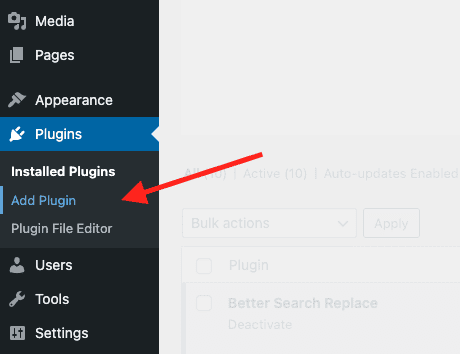
3. Search for the Wordfence Plugin In the search bar at the top right of the page, type in “Wordfence.” The first result should be “Wordfence Security – Firewall, Malware Scan, and Login Security.” Click the “Install Now” button.

4. Activate the Security Tool Once the installation is finished, that button will change to “Activate.” Click it to turn the plugin on.
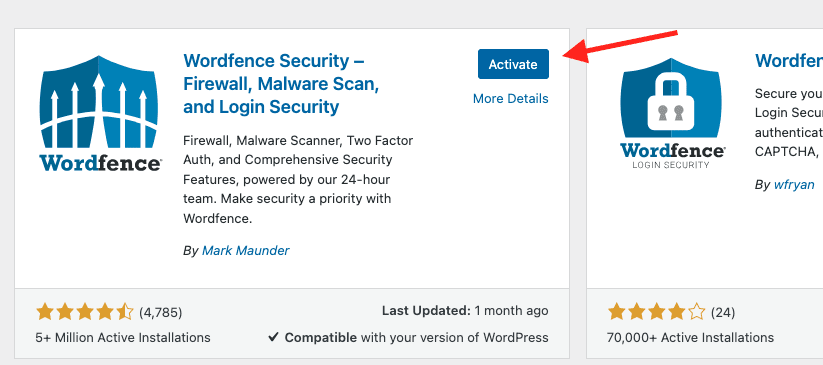
5. Get Your Free License Wordfence will now show a screen asking to get your Wordfence License. Click the big blue button and you’ll be redirected to their website.

6. Get Your Free License Once redirected to the Wordfence Website, click “Get a Free License” on the Free plan.

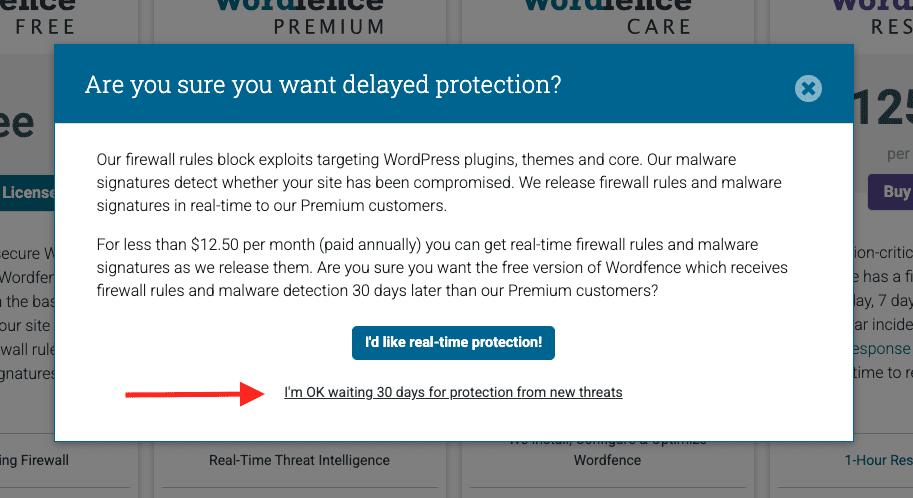
7. Real-time Protection: A Popup will appear, if you’d like real-time protection you can upgrade to a pay monthly to get instant protection on new and emerging threats, however we find for most brochure websites the free plan is perfectly fine. Click “I’m OK waiting 30 days for protection from new threats”.
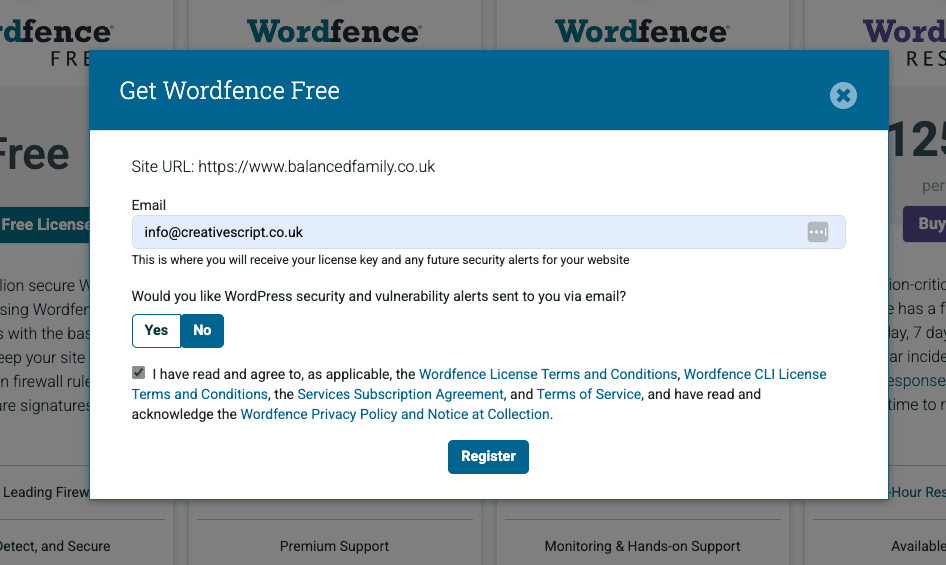
8. Enter your email address Wordfence will now show a screen asking for your email address. This is important because this is where they will send you security alerts if something goes wrong. Enter your best email, check the box to agree to their terms, and click “Register.”
6. Verify via Email Wordfence will send you an email to confirm your license. Open your inbox, find that email, and click the link that says “Install License.” This will automatically take you back to your website and complete the connection.
How to Configure the Wordfence Firewall Correctly
Once the plugin is installed, you need to make sure the firewall is actually guarding the door.
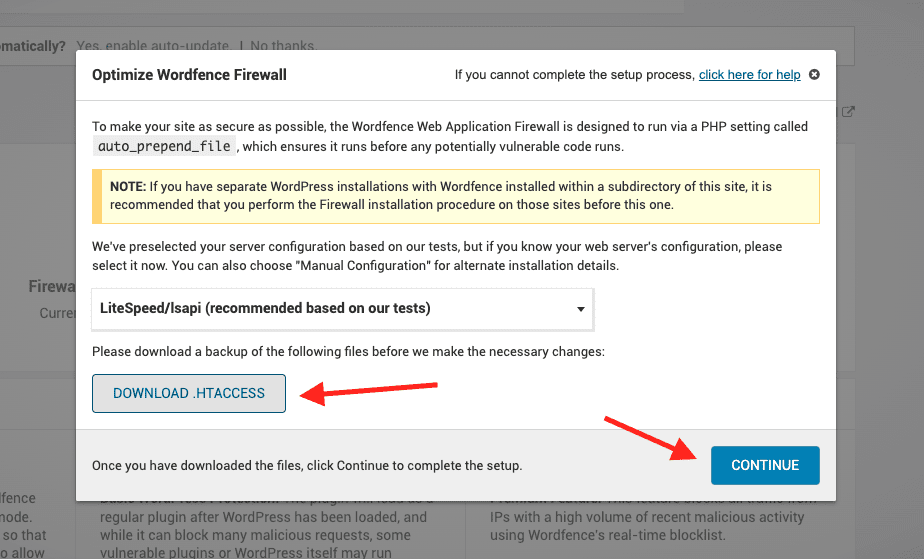
7. Optimize the Firewall You will see a banner at the top of your dashboard saying “The firewall is not yet optimized.” Click the button that says “Click here to configure.”

8. Download Your Backup File A popup will appear asking you to download a backup of your site’s .htaccess file. This is just a safety measure in case your server settings don’t like the new security rules. Click the “Download” button, save it to your computer, and then click “Continue.”
9. Let the Plugin Learn Wordfence is now active. It will start in “Learning Mode” for about a week. This is a clever feature where the plugin watches how you and your visitors use the site so it doesn’t accidentally block the wrong people. After a week, it will automatically switch to “Enabled and Protecting.”

Best Practices for Protecting Your WordPress Website
While Wordfence is a powerhouse, security is an ongoing process. We always recommend that our clients use strong, unique passwords for their admin accounts. If you use the same password for your site as you do for your personal email, you are doubling your risk.
Keep an eye on the email alerts Wordfence sends you. If you see a lot of “blocked login attempts” from places like Russia or China, don’t panic! That actually means the plugin is doing its job perfectly and stopping people from guessing your password. The web can be a bit of a wild place, but tools like this make it much easier to navigate safely.
Don’t want to do it yourself? We can help.
If you would rather have a professional handle the setup to ensure every setting is locked down correctly from day one, we offer a one-time Wordfence installation and optimization for just £20. We will install the plugin, configure the firewall, set up the malware scans, and make sure your site is as secure as possible.
However, for the ultimate peace of mind, Wordfence installation and proactive security monitoring come included as standard on our WordPress Maintenance packages. We don’t just install it and leave it; we stay on top of updates, backups, and security 365 days a year. We handle the technical side so you can focus on what you do best.
Ps. This post is not sponsored and we are not affiliates, we are simply just big fans of WordFence.